Overview
The discontinuation of the penny has changed how cash transactions are handled without penny increments. This article will cover the solutions available to help your business transition away from pennies.
Enabling Penny Rounding
Penny rounding was released in v4.12.106. If you are on an older version and would like to use this feature, please contact support@cloudretailer.com
- In back office, go to the Admin tab and click "Locations"
- Double click the desired location to enable penny rounding.
- Near the bottom of the location page, turn on "Enable Penny Rounding".
- Select the penny rounding mode: Always round in favor of the customer, store, or to the nearest nickel.
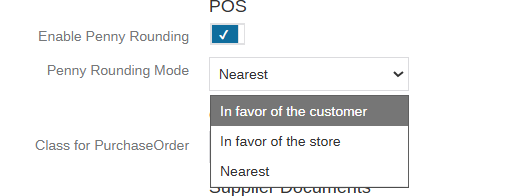
- Save the settings.
- Repeat steps 1-5 for each location that requires rounding pennies.
- Sync the registers.
- Restart Cloud Retailer on all registers for the changes to take effect.
How Does Each Mode Work?
The settings should be
Here is a quick cheat sheet:
| Change due | In favor of the store | In favor of the customer | Nearest |
|---|---|---|---|
| $7.01 | $7.00 | $7.05 | $7.00 |
| $7.03 | $7.00 | $7.05 | $7.05 |
| $7.07 | $7.05 | $7.10 | $7.05 |
| $7.09 | $7.05 | $7.10 | $7.10 |
For more information, see How Penny Rounding Works in Cloud Retailer
Was this article helpful?
That’s Great!
Thank you for your feedback
Sorry! We couldn't be helpful
Thank you for your feedback
Feedback sent
We appreciate your effort and will try to fix the article