Overview
Let's say you wish to offer a loyalty reward to a very specific group of customers. Whether it's those that have spent $1000 dollars shopping at your store, haven't shopped at your store in over a year, or are tagged for preferring a type of beer/spirit/THC.
This article will show you how to set up a loyalty reward using a customer query filter. A query filter is essentially a report with filters defined to target specific results.
Procedure
- Log into the back office
- Navigate to Admin > Loyalty Programs
- Select your loyalty program
- Add a new Loyalty Program Redeem Rule
- Configure the loyalty redeem rule
- In the Redeem rule parameter options section
- Create a new query filter
- Click on the + icon to the right of the Customer Query Filter selector
- Give the query filter a unique name
- Select the Default Customer Search QueryId
- Configure the Advanced filtering section to identify specific customer results
- Save the query filter
- Select an existing query filter from the Customer Query Filter selector
- Create a new query filter
- Save the loyalty redeem rule
Reach out to support@cloudretailer.com if you have an idea for a customer query filter that can't be achieved with the "Default Customer Search" QueryId.
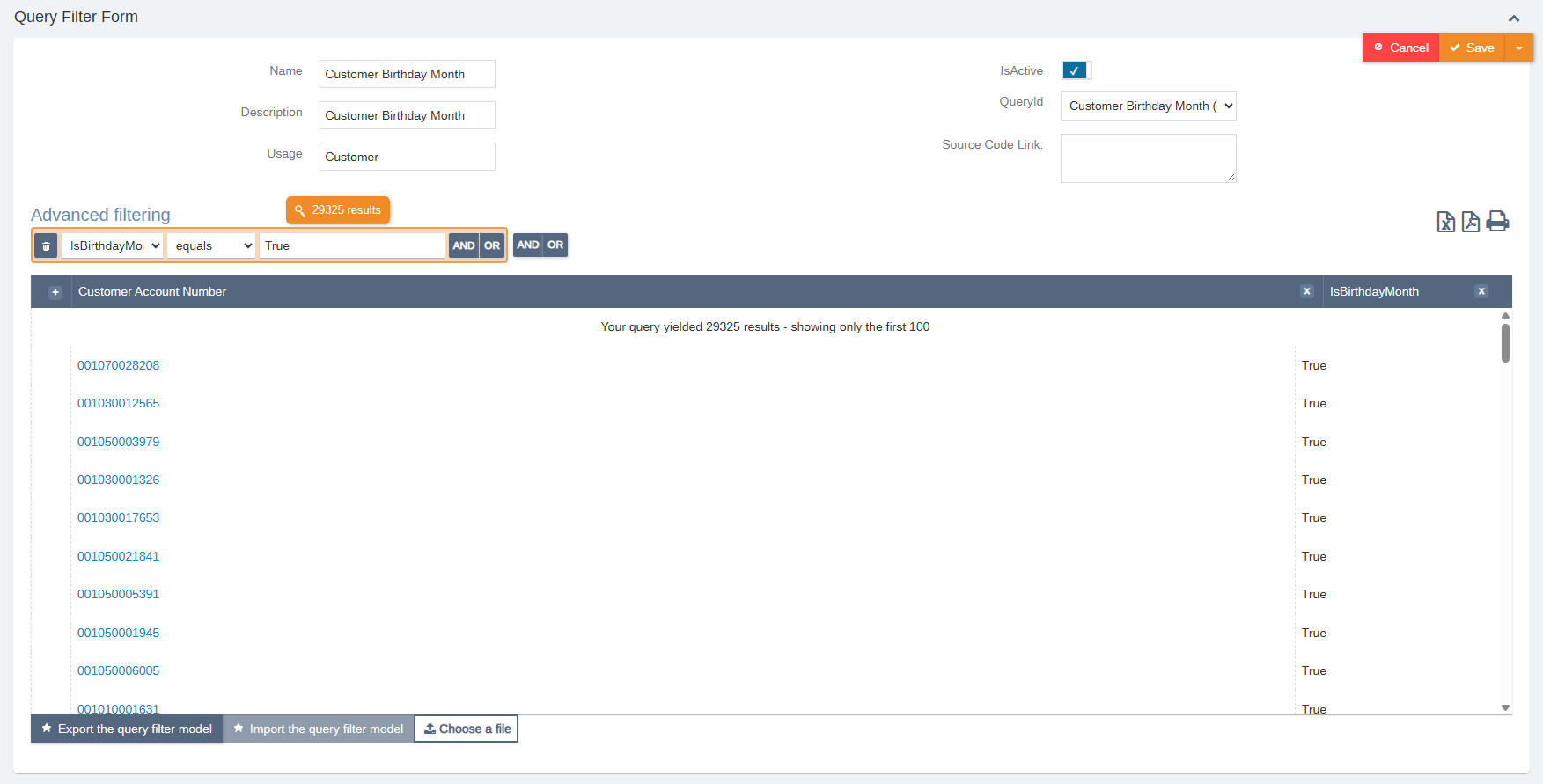
Example of a reward that checks if the current month is the customer's birth month:

Was this article helpful?
That’s Great!
Thank you for your feedback
Sorry! We couldn't be helpful
Thank you for your feedback
Feedback sent
We appreciate your effort and will try to fix the article